Staying productive and effective while on Slack

Originally published on Medium on June 15, 2016 · Written by hand, Pre-AI era.
In my previous article, I wrote about how Slack helped my team tremendously, not only in general productivity but also supporting culture and communication. However, just like any good platform, Slack can be easily misused and slowly become a time sink. I have seen it happen to almost everyone in my team and I had to spend quite an amount of time observing, tweaking my own workflow and teaching my teammates to use Slack more effectively.
Here are few simple and actionable tips that could immediately help you reclaiming your time while staying completely on top of what happens on your Slack.
1. Meaningful and standardized channel names
First and foremost, establish a clear naming convention for all your channels. The goal is to easily look at the channel list and know which one is important to you, which one is project-related, and which one is social.
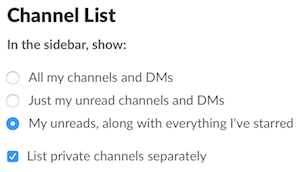
We use standard prefixes such as:
#proj-for all client / project work#team-for department discussions#fun-or#random-for social banter
2. Shortcuts! Shortcuts! Shortcuts!
Slack has amazing keyboard shortcuts. If you are still using your mouse to switch between channels, you are doing it wrong.
Use Cmd + K (or Ctrl + K on Windows) to open Quick Switcher, type the first 2 letters of the channel or person, and hit Enter. You are there.
This might be the hardest to get used to, but once you are familiar with it, I’m certain you will never go back to using mouse for navigation.
3. Mute non-essential channels
The next observation I got is how ill-informed regular users are when it comes to being added to too many channels. Of course it’s nice to be included in everything but it gets out of hand very quickly when you started to be in more than handful of noisy channel.
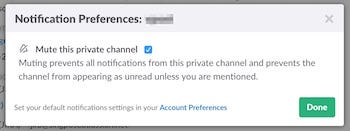
You have two options here, either leave the channel or mute it. It says clearly under the option that you won’t be notified unless your name or keywords are mentioned. It does not mean you will not know if there’s any new messages. You still do! Only on the desktop/laptop version, which is exactly appropriate for sitting-down consumption. Now, if you combine this with the keyboards shortcuts, it will not treat muted channels as unread channels even when there are new messages in it. Therefore, navigation between unread channels will only mean cycling between important ones.
Slack is clever in that sense, this is one of the subtle UX that shows great thinking behind-the-scene.
4. Important channels
In contrast with unimportant or FYI-only channels, there definitely are some channels that you need to follow closely. So you star those channels and keep them on top of the list.
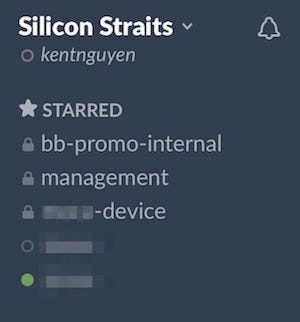
These could be your current project groups, or people with whom you communicate regularly. Or in the case of our sysadmin, he’s looking at server log channels the most.
Be careful not to keep this list too long, it would defeat the purpose if it is. I suggest not having more than 10 starred channels at any one time. Keep in mind that they would also show up the same way on your mobile app.
I do this exercise on weekly basis, I often ask myself: who do I need to chat with frequently in the next few days, which groups are needing my attention and responses quickly.
5. Mobile and selective notifications
I also wrote in the previous article that Slack has excellent notification preferences.
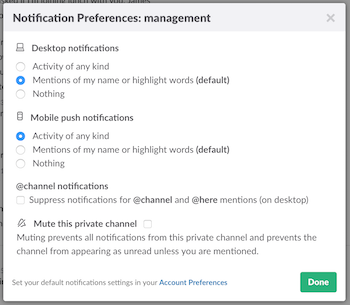
The screenshot here shows the typical notification settings panel for one channel. In this case for me it is the ‘management’ channel, which is critical. So I set it such that ALL activities are pushed to my rarely-separated smartphone. Note that this is not the default settings.
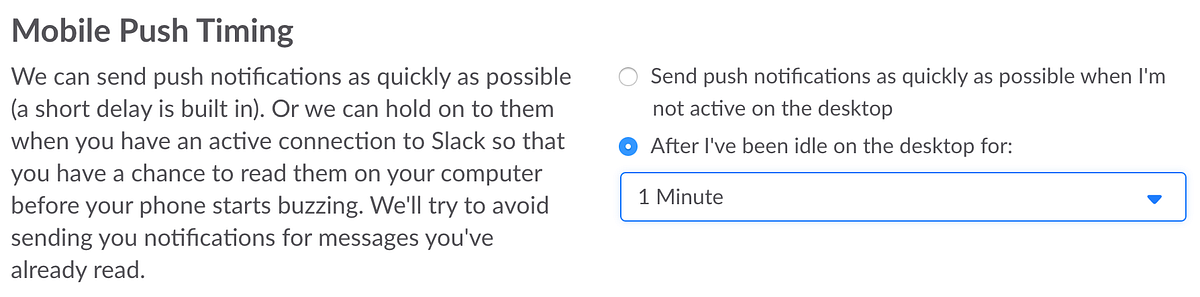
Let’s take a deeper look into how this works exactly, in order to understand how it would affect your pattern and … sanity. At first glance, it might be intimidating to think that “Activity of any kind” is actually all messages. No, it’s not quite that much:
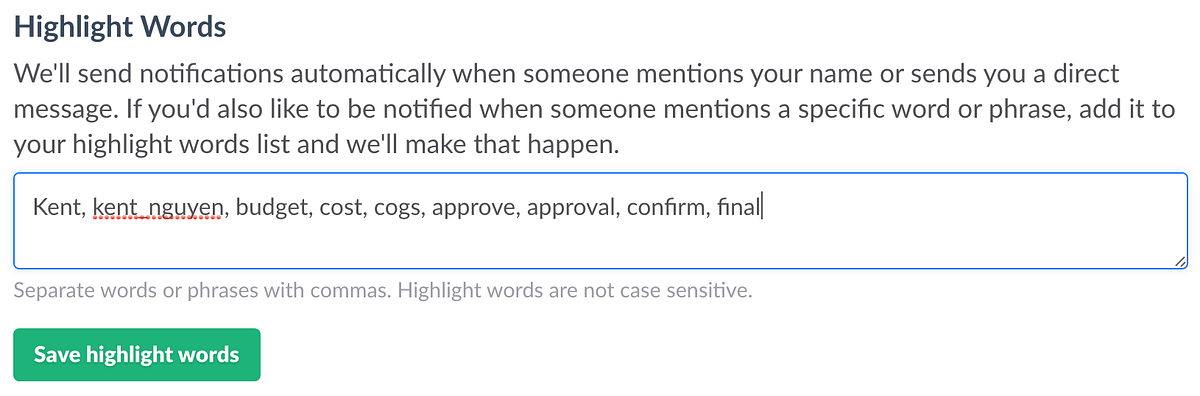
The above screenshot shows how push notification is processed for mobile devices. This setting is rather hidden, but once you found it, it is pretty self-explanatory. Applying this knowledge to the per-channel setting, we can tell that all messages will be pushed to your mobile phone app if you have not interacted with the desktop app for more than 1 minutes (configurable up to 30mins). I find it is a super smart way to handle important messages by the platform.
I set my ‘management’ channel this way, and in fact all my starred channels follow the same non-default pattern, because I know for the fact that those channels are not spammy and the messages in those channels are really important. In case I stepped out for a short while, only the important messages are automatically pushed to my mobile. I then can response to time-sensitive queries from the team if need to.
6. Critical keywords
In addition to tweaking your default notification, you should also consider adding a few critical keywords so that Slack can alert you by means of push notifications. It could be your office nick-name, your alias, or contextual acronyms of your business domain.
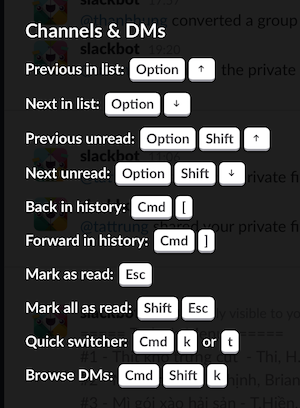
In the screenshot above, I set my keywords to a few variations of my username and important words that triggers my involvement in the discussion. When someone is asking permission to buy something, seeking approval of certain decision, or make a “final” confirmation on some features, I’d want to know before waiting for my team to update me.
Even when the channel is noisy and I muted it, these triggers bring me back right into the point where the context starts, as if I’ve never stepped out of the discussion. How convenient! I can be nowhere and everywhere.
7. Turn off that damn badge icon (Mac)
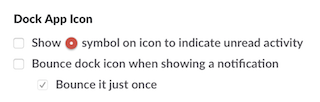
If you get as many channels as I do, the default Slack behaviour will keep your dock icon always red. What you could do is turning that off and only get notified of really important messages like @mention or specific keywords instead. Hopefully you’ll get back your quiet time and perhaps you could also consider turning off the entire Growl-notification altogether. Stay zen.
8. /call vs. /skype vs. /hangout vs /appear
A year ago, there was a /call command, there were integrations that allowed you to start video/voice calls right within Slack. The sales pitch is the same, but there is a subtle yet very important difference between these services. That is the per-call setup overhead. Out of all services, I loved to use /appear the most as it did not require any setup or installation at all, also no authentication needed. This was great for me, the team and our guests since we could start speaking as little as a few seconds. Compare that against Skype and Hangout, we often couldn’t get pass setting up the phase.
Now with the /call feature built right in, it doesn’t matter whether the members are on their laptop or phone, the call could just happen. I’m bringing this up here simply because not many people aware of such functionality. Even if they do, the mentality of “Skype/Hangout works” prevents the whole team to be using a more conducive workflow. I think that got to change and you should take a few tries to convince your team to go along.
9. Aware of the colon
This last one is rather a courtesy reminder than a functional tip. Sometimes people making statements that involves another user by using the @username tag. If this username happen to be at the beginning of the sentence, Slack automatically adds a colon and space after the tag like this “@username: ”. More often than not, having the colon there caused misunderstanding that the sender is talking to recipient directly, instead of making a statement for the group.
It is especially confusing when this happens: “@userA: @userB has done blah blah blah…” . Are you communicating to @userA that @userB has done something, or are you making a statement that both of them has done something?
A small punctuation does make a difference. If you are just a bit more careful, maybe you could save the team from some head-scratching. So be warned and aware of what you typed.
Are you convinced?
Give the above a try, and let me know if it helps you cutting down your time spending on Slack or improve your workflow in any other way.